Data recovery for Windows
Your files are probably still on that drive.
Deleting, formatting or a drive that suddenly asks to be formatted rarely wipes the data itself. DiskMend reads the drive sector by sector, finds what is still there and shows it to you before you pay anything.
Windows 10 & 11 · first 3 files free · nothing is ever written to your drive
› GPT · backup header CRC32 OK
› NTFS · $MFTMirr → $MFT @ 0x000C0000
✓ IMG_4021.JPG · 3.4 MB · intact
✓ thesis-final.docx · 812 KB · intact
◐ VID_0193.MP4 · 214 MB · partial
✓ $R7KQ2M.pdf → Recycle Bin\C\Users\…\invoice.pdf
Three steps, no technical knowledge needed
- 01
Pick the drive
USB flash drive, SD card, external or internal disk. DiskMend shows every drive Windows can see, even the ones it cannot open.
- 02
Let it search
Partition tables, backup boot records, file tables and finally the raw content are checked one after another. You see each step in the log.
- 03
Preview and save
Found files appear with their names and folders where possible, with a preview. Save them to another drive; the first 3 are free.
What it can bring back
Deleted files
Shift+Delete, emptied Recycle Bin, files removed by a camera or phone.
Formatted drives
Quick format on FAT32, exFAT or NTFS; files from before the format are listed separately.
“You need to format the disk”
RAW drives Windows will not open. Backup boot records often still describe the old file system.
Lost partitions
A partition that disappeared or was replaced by a new table is searched for in the empty space.
Emptied Recycle Bin
Files deleted from the Recycle Bin get their original names and folders back from its records.
Camera and phone cards
Photos and videos are recognised by their content, even when the folder structure is gone.
DiskMend · engine
Every method, in order
Recovery tools differ mostly in how many ways they try. DiskMend runs the full ladder automatically and tells you which step found each file.
- 1
Partition table and its backups
MBR, GPT and the backup GPT at the end of the disk.
- 2
Backup boot records
NTFS, FAT32 and exFAT keep a second copy; a damaged first copy is no dead end.
- 3
File table and its mirror
$MFT with $MFTMirr on NTFS, folder trees and deleted entries on FAT and exFAT.
- 4
Old records after formatting
File records left over from before a quick format are searched across the whole volume.
- 5
Lost partition search
Space outside the partitions is checked for boot records of partitions that are gone.
- 6
Search by content
17 formats (JPEG, PNG, HEIC, MP4, MOV, PDF, Office, ZIP, MP3, …), each verified from start to end.
See it in your language
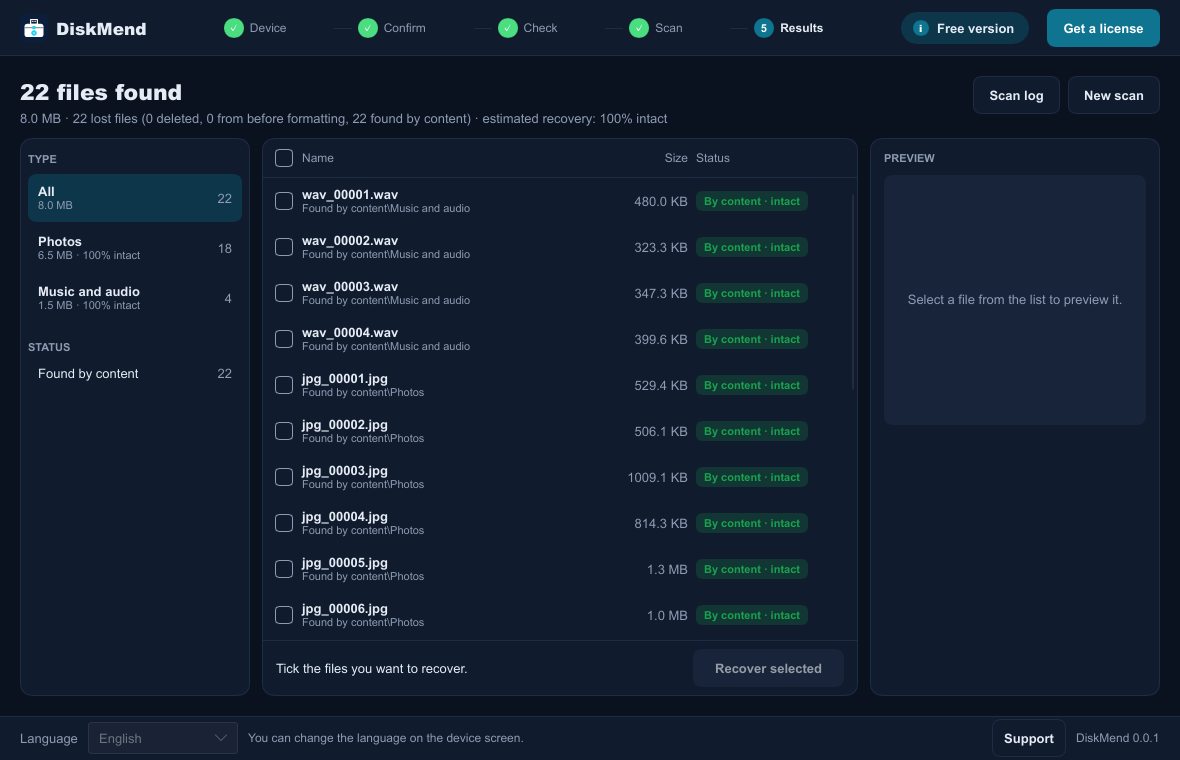
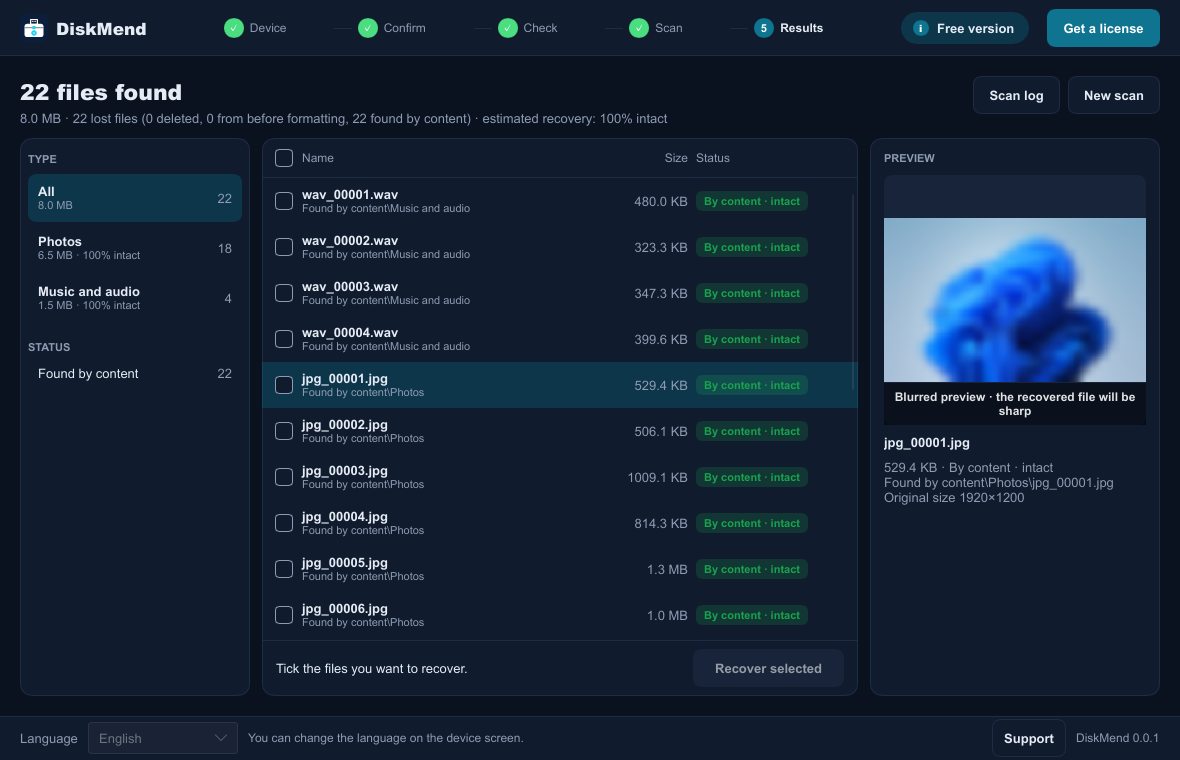
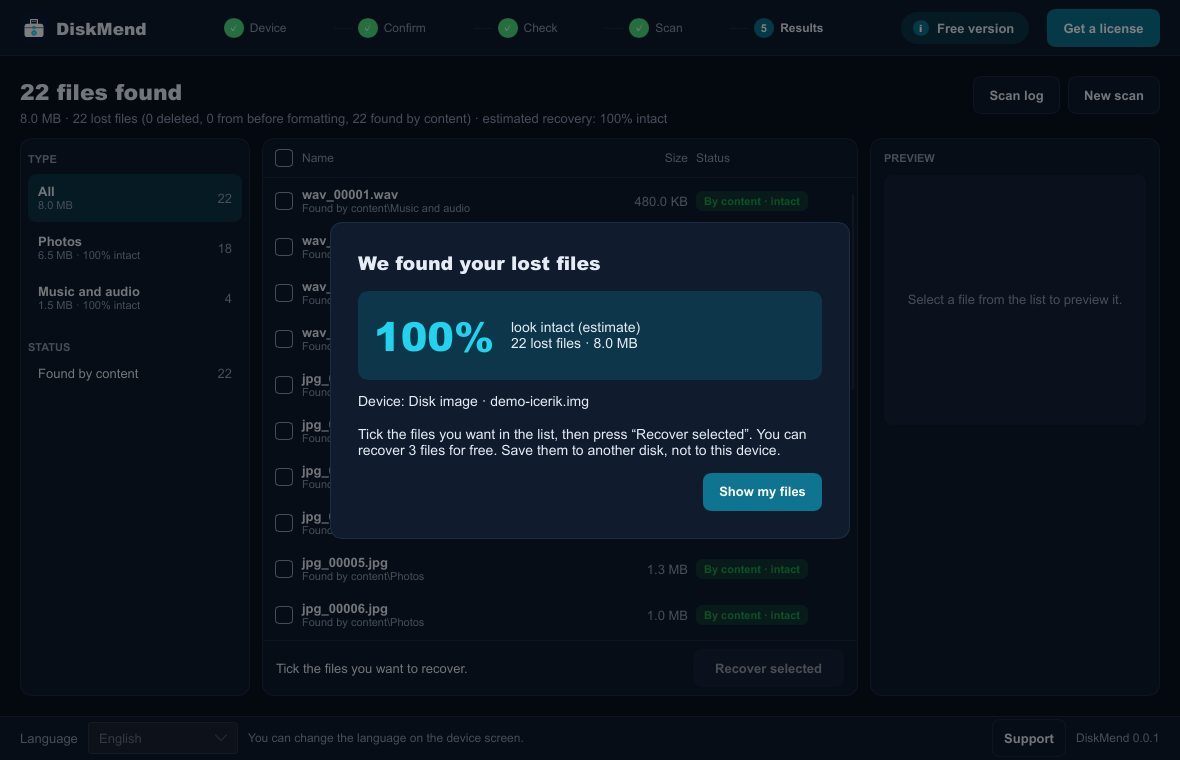
Built so you do not lose more
Read-only
The drive is opened for reading only. DiskMend never repairs, formats or writes to the drive you are recovering.
Saves elsewhere
Recovered files cannot be saved onto the same drive, so nothing still waiting to be recovered gets overwritten.
Honest results
Each file is marked intact or partial. No promises of 100%: you see the estimate before you pay.
Pay only when you see your files
Try first: scan, preview and save your 3 most important files for free.
✓30-day money-back guarantee if DiskMend cannot recover your files.
Recovery license
$49one-time payment
- All files found on one drive
- Unlimited saves for 30 days
- One Windows PC
- Key delivered by e-mail in a minute
- Free updates
Secure checkout by Polar (merchant of record). Taxes are calculated at checkout.
Recovery guides
Guides →How to recover files from a formatted USB flash drive
Formatted a USB stick by mistake? A quick format leaves your files on the drive. Here is what actually happens, what to do first and how to get the files back on Windows.
Read guide →5 min readHow to recover deleted photos from an SD card
Deleted photos on a camera or phone SD card are usually still on the card. Learn why, what to avoid and how to get them back on a Windows PC, even after formatting the card.
Read guide →6 min read“You need to format the disk before you can use it” — get your files back first
Windows says your USB drive or SD card must be formatted? Do not click Format. Here is what the message means, why the files are usually still there and how to recover them.
Read guide →Questions people ask
Is it really free to try?+
Yes. Scanning and previewing are free, and you can save your 3 most important files on each drive without a license. You only pay if you want to save more.
Will DiskMend change anything on my drive?+
No. The drive is opened read-only. Recovered files must be saved to a different drive.
Windows says “You need to format the disk”. What should I do?+
Close that window and do not format. Open DiskMend and select the drive; it reads the drive directly, even when Windows cannot.
Can it recover files after a quick format?+
Usually yes. A quick format only rewrites the file table; DiskMend finds old records and searches by content.
What does the license cover?+
One drive, on one Windows PC, for 30 days from activation: save every file found on that drive as often as you like.
Start with a free scan
See what can be recovered before you decide anything.
Windows 10 or 11 (64-bit) · digitally signed by Mahir Gündüz